> ## Documentation Index
> Fetch the complete documentation index at: https://differentai-refactor-tool-ui-core-minimal.mintlify.site/llms.txt
> Use this file to discover all available pages before exploring further.
# Create a skill from chat
> Turn a useful OpenWork chat into a reusable skill
**Choose where the skill lives.** A local workspace skill is free and requires no OpenWork Cloud sign-in. When you are signed in and ask OpenWork to create a skill “for me,” it creates a private Cloud plugin that only you can access. Owners and admins can publish managed team skills through [Collections](/cloud/share-with-your-team/collections).
Do the work once in chat before you turn it into instructions.
## Turn a useful chat into a personal Cloud skill
1. Finish the task in chat and keep the thread open.
2. Ask in plain English: `Turn what we just did into a reusable skill for me`.
3. OpenWork saves the skill in your OpenWork Cloud organization as a private plugin. You receive access automatically; it is not written into your workspace or shared with anyone else.
4. Give the skill a clear name if OpenWork asks, then let it confirm what it saved. The result includes the skill name, description, and Library link as text.
5. Use it later by name in chat, or describe the same kind of task and let OpenWork trigger it when it matches.
## Other ways to create a skill
Every path creates the same thing: a skill inside a plugin in your OpenWork Cloud organization.
* **Desktop, from the Library**: open `Settings` > `Library`, filter to `Skills`, and click `Add skill`. This requires being signed in to OpenWork Cloud; the skill is created as a private plugin in your organization.
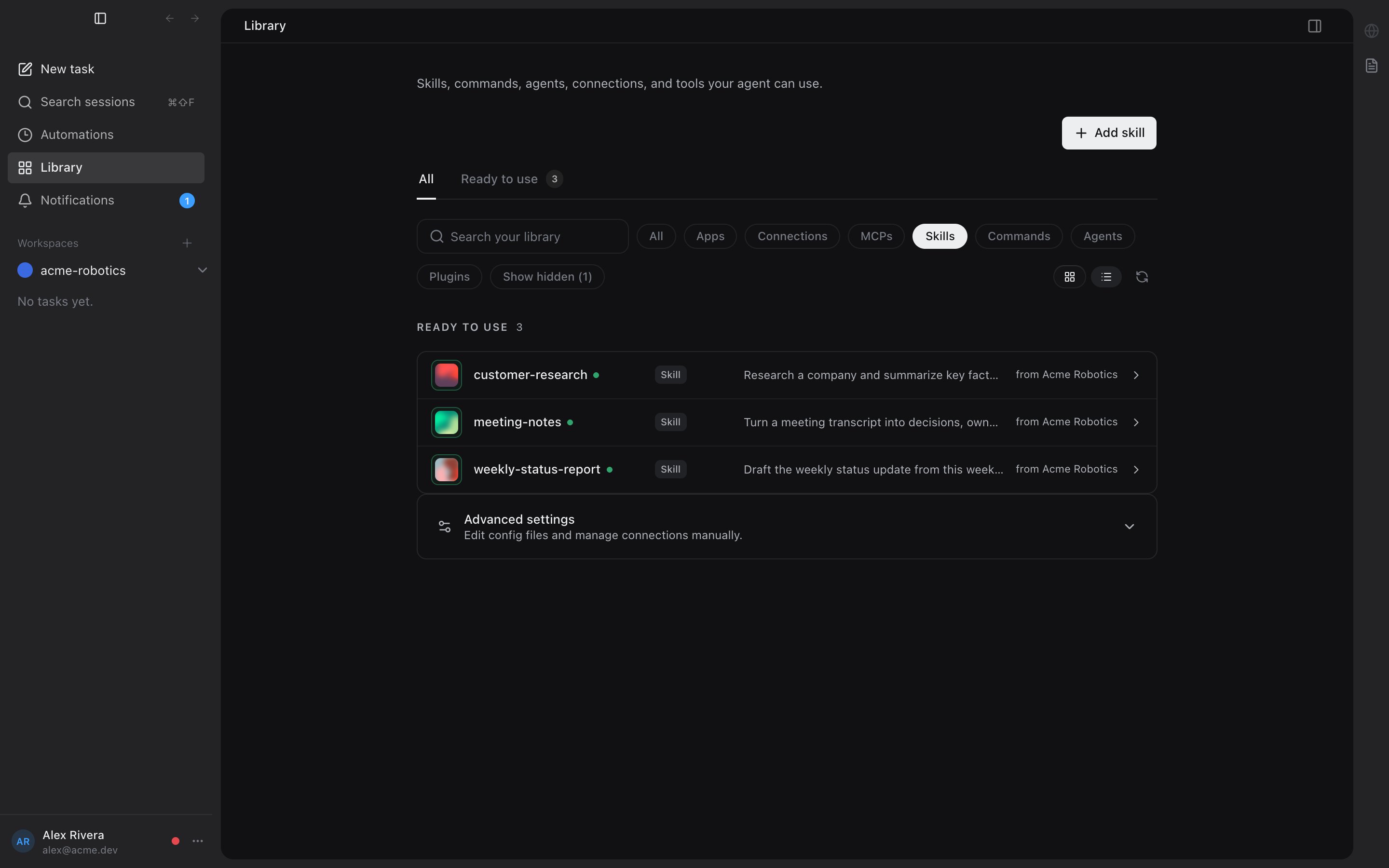
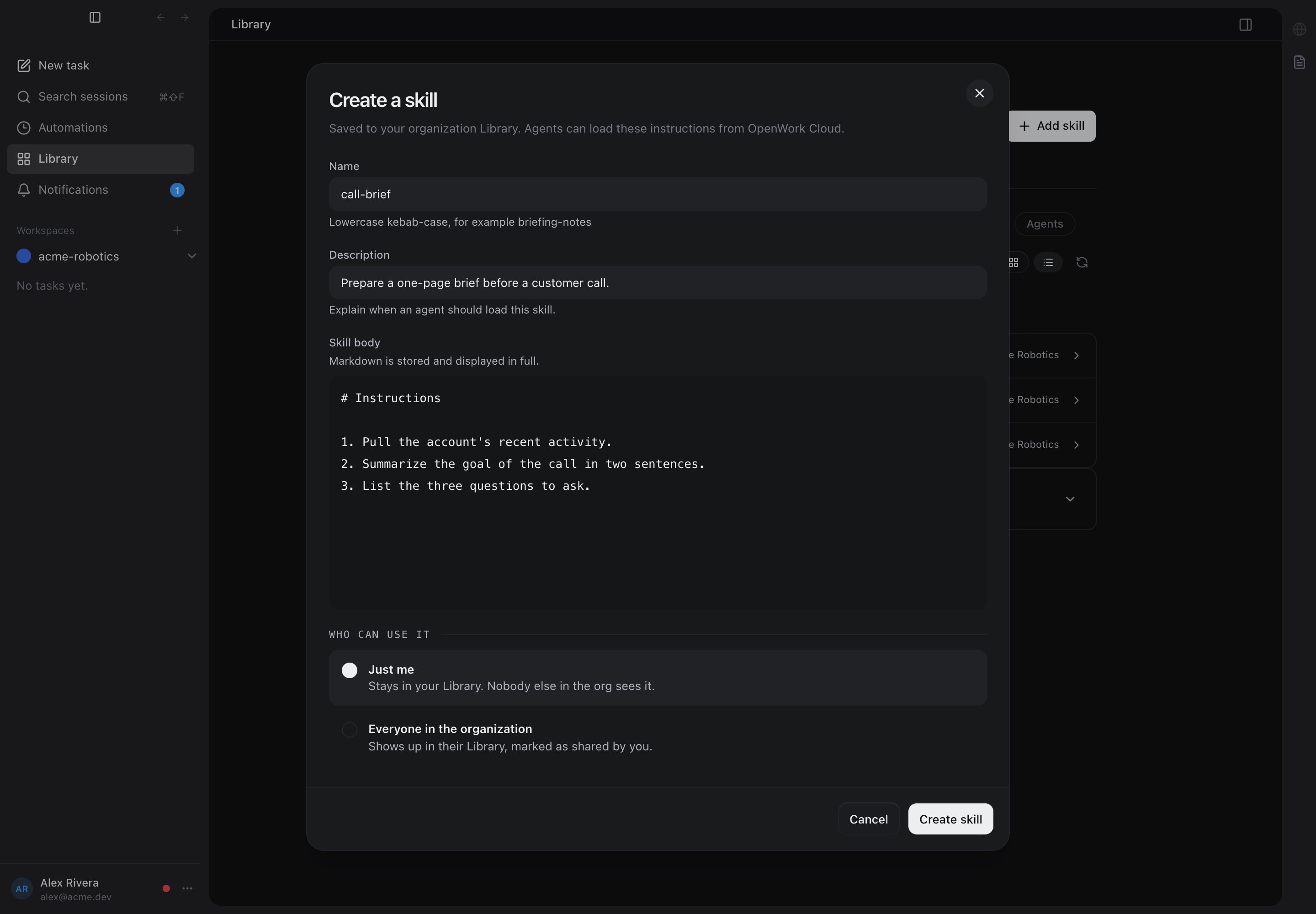 * **Cloud dashboard**: organization admins create and edit skills inside a plugin from `Plugin Directory` — open a plugin and add a skill to it.
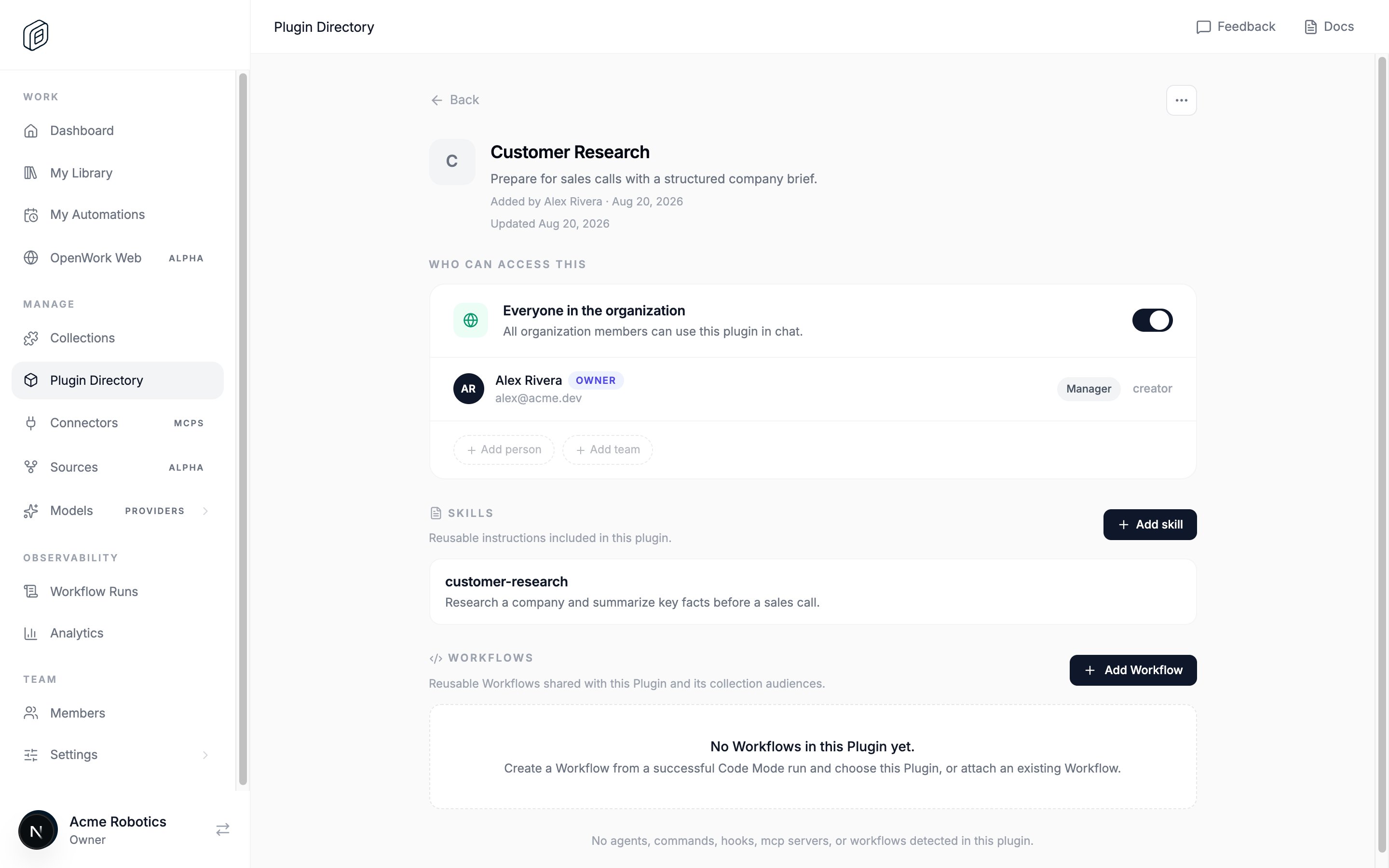
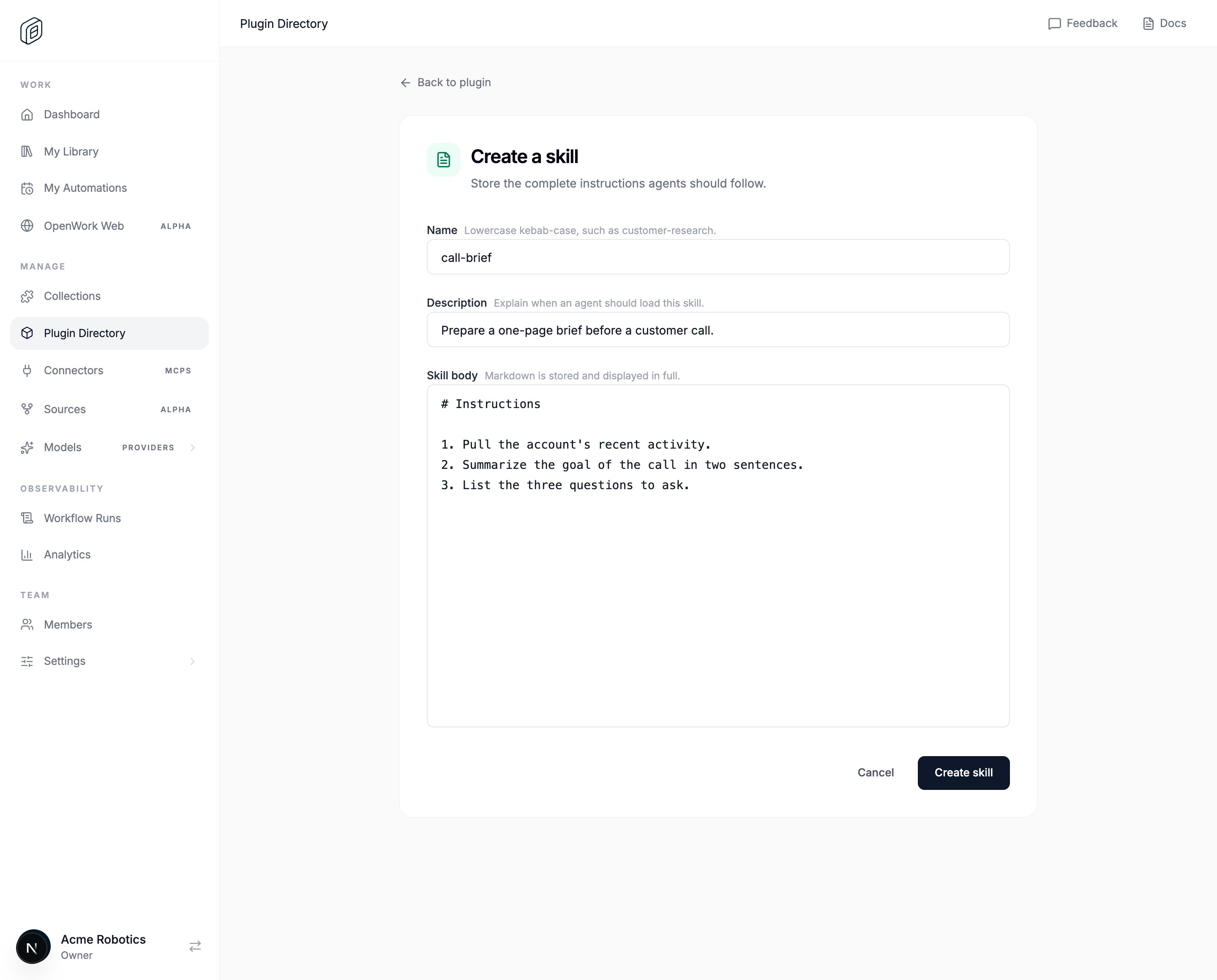 * **From chat**, as described above.
## Change or share it only when you choose
1. To refine it, ask for the change in chat, such as `Make the skill ask before sending email`.
2. To share it with teammates, add its plugin to a Collection and grant that Collection by following [Publish and copy a skill](/start-here/do-work-with-it/publish-and-copy-a-skill).
Creating the skill does not publish it. Sharing is a separate step you choose.
## Keep a skill local to one workspace
A local skill is a `SKILL.md` file inside your workspace (for example `.opencode/skills//SKILL.md`). If you explicitly ask for a local skill in chat, OpenWork creates only that file and does not make a Cloud copy. Local skills need no Cloud account and remain available in `Settings > Library`, but OpenWork Cloud cannot assign or update them for your team.
* **From chat**, as described above.
## Change or share it only when you choose
1. To refine it, ask for the change in chat, such as `Make the skill ask before sending email`.
2. To share it with teammates, add its plugin to a Collection and grant that Collection by following [Publish and copy a skill](/start-here/do-work-with-it/publish-and-copy-a-skill).
Creating the skill does not publish it. Sharing is a separate step you choose.
## Keep a skill local to one workspace
A local skill is a `SKILL.md` file inside your workspace (for example `.opencode/skills//SKILL.md`). If you explicitly ask for a local skill in chat, OpenWork creates only that file and does not make a Cloud copy. Local skills need no Cloud account and remain available in `Settings > Library`, but OpenWork Cloud cannot assign or update them for your team.